Opinion
The MX Master 4 is the productivity mouse to watch in 2026
Logitech’s MX Master 4 adds haptics and Actions Ring shortcuts, but the real story is whether it earns a place on serious desks.
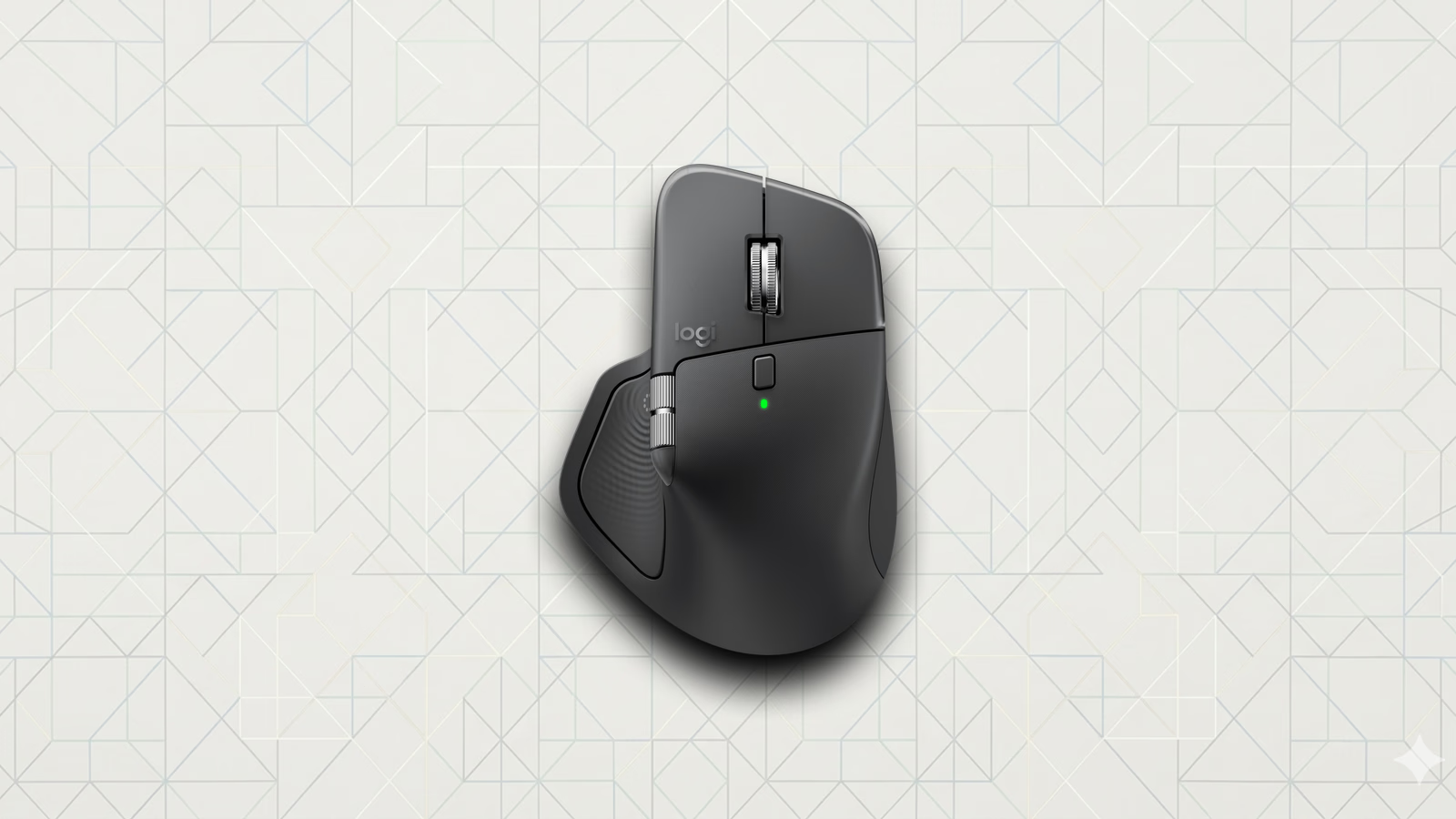
The Logitech MX Master 4 deserves attention, but not because haptics suddenly make mice exciting. It matters because Logitech is trying to make the productivity mouse more useful inside the apps people use all day.
People who care about their desks have a bad habit: every new mouse gets treated like either an ergonomic miracle or a pointless refresh. The Logitech MX Master 4 sits in the more useful middle. It is a $119.99 right-handed productivity mouse with an 8,000 DPI Darkfield sensor, MagSpeed scrolling, haptic feedback, and a new Actions Ring shortcut system in Logi Options+. That is enough to make it worth a closer look.
We have not tested the Logitech MX Master 4 yet, so this is not a review and it is not Loft Approved. The useful question is narrower: does the new shortcut layer make the MX Master line better for daily work, or is this a polished refresh of a mouse many people already own?
Why this product is trending
The Logitech MX Master 4 is getting attention because it updates one of the default mouse recommendations for developers, designers, and creators. The Logitech MX Master 3S became the safe pick because it had the shape, scroll wheel, quiet clicks, battery life, and cross-device support most people wanted at a work desk. That is a hard product to follow.
Logitech’s answer is not a lighter shell or a higher polling rate. It is a new layer of shortcuts. The new Actions Ring puts app-specific shortcuts around the cursor, while the haptic motor gives physical feedback when you trigger certain actions. Logitech claims Actions Ring can save up to 33% of time in its own Ergo Lab study with 37 users. That is a manufacturer claim, not an independent result, but the direction is interesting.
For people building a desk for real work, the question is not “is haptic feedback cool?” It is simpler: does the mouse reduce trips to the keyboard, menu bar, and floating tool palettes in apps like Photoshop, Premiere Pro, Excel, Figma, or VS Code? If yes, the Logitech MX Master 4 is more than a refresh. If no, it is a nicer Logitech MX Master 3S with a feature you will forget after a week.
What actually changed
The headline change is Actions Ring, Logitech’s app-specific shortcut menu that opens around the cursor. That is more interesting than the haptics. A mouse that adds vibration is a novelty. A mouse that lets you trigger the same five commands in Photoshop, Excel, Figma, Premiere Pro, or VS Code without reaching for a menu might actually change how you work.
The rest of the mouse is familiar MX Master territory: a right-handed shape, an 8,000 DPI Darkfield sensor, MagSpeed scrolling, quiet clicks, cross-device support, and a body that is built for controlled desktop work instead of fast gaming. That matters because the MX Master 3S already solved the boring parts well enough for most work desks.
The tradeoffs are familiar too. It is still right-handed. It is still heavy compared with lighter mice. It still depends on Logi Options+ if you want the best version of it. If you want low-latency gaming, a light shell, or hardware that works the same without vendor software, this is the wrong mouse.
The basic argument is straightforward: the MX Master 4 looks like a strong productivity mouse, but the upgrade lives or dies on whether Actions Ring becomes part of your daily muscle memory. The buying question is not whether the launch is impressive. It is whether you will configure the thing.
MX Master 4 vs MX Master 3S
| Feature | MX Master 4 | MX Master 3S |
|---|---|---|
| Main reason to buy | Actions Ring shortcuts and haptic feedback for app-specific control | Proven MX shape, scroll wheel, quiet clicks, and broad appeal for work setups |
| Sensor | 8,000 DPI Darkfield | 8,000 DPI Darkfield |
| Controls | MagSpeed scrolling, thumb controls, Actions Ring, and app profiles | MagSpeed scrolling, thumb controls, gestures, and app profiles |
| Software dependency | Works best after configuring Logi Options+ | Useful without deep tuning, better with Logi Options+ |
| Best fit | People who build shortcuts for Photoshop, Excel, Figma, Premiere Pro, or VS Code | People who want the more proven productivity mouse, especially at a discount |
| Skip if | You want a light mouse, left-handed shape, low-latency gaming, or no vendor software | You want Actions Ring enough to pay for and configure the newer mouse |
Where it could actually help
The best case for the Logitech MX Master 4 is not better pointing. Most good mice already point well enough. The useful part is whether it can make repetitive desktop work easier to trigger from the mouse.
A mouse earns space in a work setup when it solves three boring problems:
- It keeps your hand comfortable through long sessions
- It scrolls large pages, timelines, spreadsheets, and code files without friction
- It lets you repeat common actions without breaking focus
The Logitech MX Master 4 is credible on the first two because the MX line already was. The third is the new part. Actions Ring could be useful if you map it to tools you trigger constantly: screenshot selection, mute controls, brush controls, timeline trimming, window snapping, or app-specific commands. It will be useless if you leave it full of default shortcuts you never reach for.
That makes this a mouse for people willing to tune their software. The hardware gets it into consideration. It only becomes worth buying if you spend 20 minutes building sane app profiles in Logi Options+.
Who should care
The Logitech MX Master 4 is worth your attention if you spend your day writing, coding, editing, designing, working in spreadsheets, researching, or jumping between too many admin apps. That is where the scroll wheel, thumb controls, app profiles, and any useful haptic feedback have a chance to matter.
Keep the Logitech MX Master 3S if you already own one and do not feel constrained by it. The Logitech MX Master 4 looks like an improvement, not a rescue.
Skip it if you are left-handed, want a light mouse, play competitive games, or hate configuring software. The MX Master shape is still right-handed, and the mouse is still built for controlled desk work rather than fast, lightweight movement. That alone rules it out for a lot of people.
What we would check before upgrading
The first check is whether Actions Ring becomes muscle memory. A new shortcut layer only matters if it beats the keyboard commands and app panels you already know. If it slows you down, it is decoration.
The second check is weight. The Logitech MX Master 4 is still a heavy productivity mouse compared with faster, lighter options. That is fine for timeline scrubbing, spreadsheet work, and long reading sessions. It is not fine if your hand wants something light and quick.
The third check is whether you are willing to live in Logi Options+. If you hate that software, avoid this upgrade. The Logitech MX Master 4 is most interesting when you actually use its app profiles, not when you treat the software like a driver you install once and forget.
Sources
The Logitech MX Master 4 is worth watching for work setups, but the smart move is to judge it by whether you will actually configure Actions Ring, not by launch-week novelty. If you will tune it, it belongs on the 2026 productivity shortlist. If you will not, buy the discounted Logitech MX Master 3S instead.
Featured in this article
Products
Logitech MX Master 4
Amazon
Logitech MX Master 3S
Amazon